Best IPTV Player for Windows in 2026 (Top 5 Reviewed)
Key Takeaways
- The best IPTV player for Windows depends on your priorities: VLC for simplicity, Kodi for power, IPTV Smarters Pro (via emulator) for a TV-like experience.
- TiviMate runs on Windows via BlueStacks and delivers the same polished experience as on Android TV.
- Kodi is the most feature-rich Windows IPTV solution but requires more setup time than dedicated apps.
- VLC Media Player is the simplest option — open an M3U URL and you're watching live TV in under 60 seconds.
- For the best Windows IPTV experience, use a dedicated Windows IPTV app rather than a browser-based solution.
The best IPTV player for Windows gives PC users the same live TV experience that Firestick and Android TV users enjoy — but on the biggest screen at your desk. Windows IPTV has improved dramatically over the past two years, with dedicated apps, better Android emulation, and continued development of open-source solutions.
This guide covers the top five options for Windows 10 and Windows 11, with honest assessments of setup difficulty, performance, and which scenarios each app handles best. If you want a broader cross-platform comparison, our best IPTV players guide covering all platforms and the complete Windows/Mac IPTV setup guide cover additional ground.
Windows IPTV Player Comparison
| Player | Free/Paid | M3U Support | EPG Support | OS Support | Setup Difficulty | |---|---|---|---|---|---| | TiviMate (via BlueStacks) | Free + $5.99/yr | Yes | Excellent | Windows 10/11 | Moderate | | IPTV Smarters Pro (via BlueStacks) | Free | Yes | Good | Windows 10/11 | Moderate | | GSE Smart IPTV (Web/Android) | Free + $2.99 | Yes | Good | Windows 10/11 | Easy | | VLC Media Player | Free | Yes | Basic | Windows/Mac/Linux | Very Easy | | Kodi | Free | Yes (via addon) | Via addon | Windows/Mac/Linux | Complex |
1. TiviMate via BlueStacks — Best Overall Windows IPTV Experience
TiviMate doesn't have a native Windows application — it's an Android app. But running it on Windows through BlueStacks (a free Android emulator) delivers the same polished interface, fast EPG navigation, and smooth channel switching that makes TiviMate the favorite IPTV app on TV devices.
Setting up TiviMate on Windows:
- Download and install BlueStacks 5 from bluestacks.com (free)
- Sign in with a Google account in BlueStacks
- Install TiviMate from the Google Play Store within BlueStacks
- Launch TiviMate, enter your M3U URL or Xtream Codes credentials
- Configure EPG and you're watching live TV
The full process takes about 15 minutes on a modern PC. BlueStacks 5 is optimized for Windows 10 and 11, and on a machine with 8GB+ RAM and a modern processor, TiviMate via BlueStacks runs as smoothly as on native Android TV hardware.
Why it's worth the extra setup:
TiviMate's EPG is the best available. The interface is designed for TV viewing, which translates well to a large monitor. If you're using Windows IPTV on a PC connected to a TV (a common setup for home offices), TiviMate's UI looks excellent on a 65" display.
The premium subscription ($5.99/year) is fully functional through BlueStacks, including multi-playlist support, recordings, and auto-EPG updates.
System requirements:
- Windows 10/11 (64-bit)
- 8GB RAM minimum (16GB recommended for best performance)
- SSD recommended for BlueStacks fast startup
- Any modern Intel/AMD processor
Performance note: BlueStacks adds some overhead compared to native apps. On a machine with 16GB RAM and a modern processor (Ryzen 5 or Intel Core i5 equivalent), the experience is smooth. On older machines with 4GB RAM, you may experience lag.
Pro Tip: In BlueStacks Settings → Performance, set RAM allocation to 4GB and CPU cores to 4 if your machine has 8+ GB RAM and a quad-core processor. This allocates sufficient resources to TiviMate for smooth 4K playback without starving other Windows applications.
2. IPTV Smarters Pro via BlueStacks — Best Free Windows IPTV App
IPTV Smarters Pro follows the same path as TiviMate — run via BlueStacks on Windows — but with the advantage of being completely free. The app installs from Google Play within BlueStacks and provides full M3U and Xtream Codes support.
Why it works well on Windows:
IPTV Smarters Pro's interface translates reasonably well to a windowed application on PC. Channel switching, EPG navigation, and VOD browsing all function correctly with mouse input (BlueStacks maps mouse clicks to touch events). The keyboard shortcut support is limited but adequate.
For Windows users who don't want to spend even $5.99/year on TiviMate premium, IPTV Smarters Pro via BlueStacks is the best free full-featured alternative. Setup time is similar to TiviMate — about 15 minutes from BlueStacks install to watching live TV.
Comparison with TiviMate: IPTV Smarters Pro works great for basic channel browsing and EPG viewing. It falls behind TiviMate on EPG load speeds, multi-playlist management, and interface refinement. For casual PC IPTV use, it's more than sufficient. For users who spend significant time navigating IPTV, TiviMate's $5.99/year is worth it.
For more on M3U playlists and how to use them efficiently, see our M3U playlist optimization guide.
3. GSE Smart IPTV — Best for Simple Windows IPTV
GSE Smart IPTV takes a different approach to Windows compatibility: the developer provides a web-based version accessible from any browser, plus Android APK for emulators. The browser version means zero installation — navigate to the GSE Smart IPTV web app, enter your M3U URL, and you're watching live TV in under 60 seconds.
Web version advantages: No installation required makes this the quickest path from "I have an IPTV subscription" to "I'm watching TV on my PC." The web interface handles M3U playlists and Xtream Codes, provides a basic EPG, and supports HD playback.
Web version limitations: Browser-based IPTV occasionally struggles with certain stream formats and DRM-protected content. Hardware acceleration in browsers isn't as efficient as in native apps, so 4K streams can be choppy on mid-range hardware. The interface is more basic than TiviMate or IPTV Smarters Pro.
Best use case: Quick testing of IPTV playlists, occasional PC viewing, or situations where installing BlueStacks isn't practical.
4. VLC Media Player — Best Lightweight Free Option
VLC Media Player is the world's most popular open-source media player, and it handles IPTV through its native M3U playlist support. Add any M3U URL through Media → Open Network Stream or Media → Open File (for local M3U files), and VLC will load all the channels from your playlist.
Setup is genuinely simple:
- Open VLC
- Go to Media → Open Network Stream (Ctrl+N)
- Paste your M3U URL
- Click Play
VLC will load your channel list in its playlist panel. Channel switching is done by clicking entries in the playlist. This is minimal UI — no EPG grid, no channel logos, no favorites management — but it works with zero configuration.
EPG in VLC: VLC doesn't have built-in EPG support, but it can read XMLTV EPG files if you set the path in Preferences. The implementation is basic and not as user-friendly as dedicated IPTV apps.
Why VLC makes this list: VLC is pre-installed on many Windows machines, supports virtually every video codec, and adds zero overhead. For occasional IPTV viewing or testing playlists, it's unbeatable for simplicity. For daily use with a comprehensive EPG, dedicated IPTV apps are better tools.
Performance: VLC is the lightest application on this list. It runs smoothly even on older Windows machines with 4GB RAM. Hardware-accelerated 4K decoding is supported on modern GPUs.
5. Kodi — Most Powerful Windows IPTV Platform
Kodi on Windows is the most capable IPTV solution available — and the most demanding to set up correctly. As a full media center platform, Kodi handles IPTV through its PVR (Personal Video Recorder) addon system, with the PVR IPTV Simple Client being the standard choice.
Why Kodi is worth considering:
Kodi provides capabilities no other app on this list can match:
- Full DVR functionality (with network-attached storage or local drives)
- Combined library of local media + IPTV channels
- Extensive skin/UI customization
- Comprehensive addon ecosystem for additional streaming sources
- Cross-platform sync between devices
The Kodi IPTV experience, when properly configured, rivals dedicated IPTV hardware in functionality. You get channel surfing, EPG, recordings, time-shifting, and VOD in a single application.
Setup complexity: Getting Kodi configured for IPTV requires:
- Installing Kodi
- Enabling PVR IPTV Simple Client addon
- Pointing it to your M3U URL
- Separately configuring XMLTV EPG data
- Restarting the PVR backend
- Waiting for EPG to populate (can take several minutes)
This is substantially more involved than any other option. But once configured, Kodi provides an experience that rewards the investment.
Kodi skins for IPTV: The default Kodi skin (Estuary) is functional for IPTV. Third-party skins like Aeon Nox Silvo provide a more TV-like experience that works better for channel browsing.
The Windows IPTV Setup Path: Which Should You Choose?
You want the easiest setup: VLC for basic playback, or GSE Smart IPTV's web version for no-install access.
You want the best EPG and interface: TiviMate via BlueStacks. The 15-minute setup is worth it for daily use.
You want a free full-featured option: IPTV Smarters Pro via BlueStacks.
You want maximum features and don't mind setup time: Kodi. Its DVR and local media integration is unmatched.
You want a native Windows app without emulation: VLC is your best native option. True native Windows IPTV apps remain limited — most good IPTV software is developed for Android first.
System Requirements Summary
| App | Min RAM | Recommended RAM | CPU | Windows Version | |---|---|---|---|---| | TiviMate (BlueStacks) | 8GB | 16GB | Quad-core | 10/11 (64-bit) | | IPTV Smarters Pro (BlueStacks) | 8GB | 16GB | Quad-core | 10/11 (64-bit) | | GSE Smart IPTV (Browser) | 4GB | 8GB | Any | 7+ | | VLC Media Player | 2GB | 4GB | Any | 7+ | | Kodi | 4GB | 8GB | Dual-core | 7+ |
Conclusion
The Windows IPTV experience in 2026 is more capable than many users realize. TiviMate via BlueStacks delivers a TV-quality interface on PC. VLC provides instant access with zero setup. Kodi offers media center functionality that goes beyond what any dedicated IPTV box provides.
The right choice depends on how seriously you take your IPTV setup. Casual viewers should start with VLC or the GSE web version. Daily users will get more from TiviMate or IPTV Smarters Pro. Power users who want recordings and DVR should invest time in Kodi.
Frequently Asked Questions
What is the best free IPTV player for Windows?▾
VLC Media Player is the best completely free IPTV player for Windows. It handles M3U playlists natively, supports virtually all video codecs, and requires no subscription or paid features.
Can I use TiviMate on Windows?▾
TiviMate is an Android app and doesn't have a native Windows version. However, it runs on Windows via BlueStacks (Android emulator), and many users report excellent performance with this setup.
Does IPTV work on Windows 11?▾
Yes, all IPTV players on this list are fully compatible with Windows 11. VLC, Kodi, and IPTV Smarters Pro (via BlueStacks) all run without compatibility issues on Windows 11.
Ready to cut the cord?
Try IPTV US — 10,000+ Channels from $6.99/mo
HD & 4K streaming, sports, movies, and live TV on any device. No contracts. Free trial available.
View Plans & PricingCord-Cutting Specialist
Sarah cut the cable cord in 2017 and has been helping others do the same ever since. She specializes in streaming device setups, app comparisons, and practical guides for non-technical users. Sarah has written step-by-step tutorials for Fire Stick, Android TV, Apple TV, and smart TVs, and is the go-to voice for device-specific IPTV guidance.
Comments
Comments are coming soon. Have a question? Contact us.
Related Articles
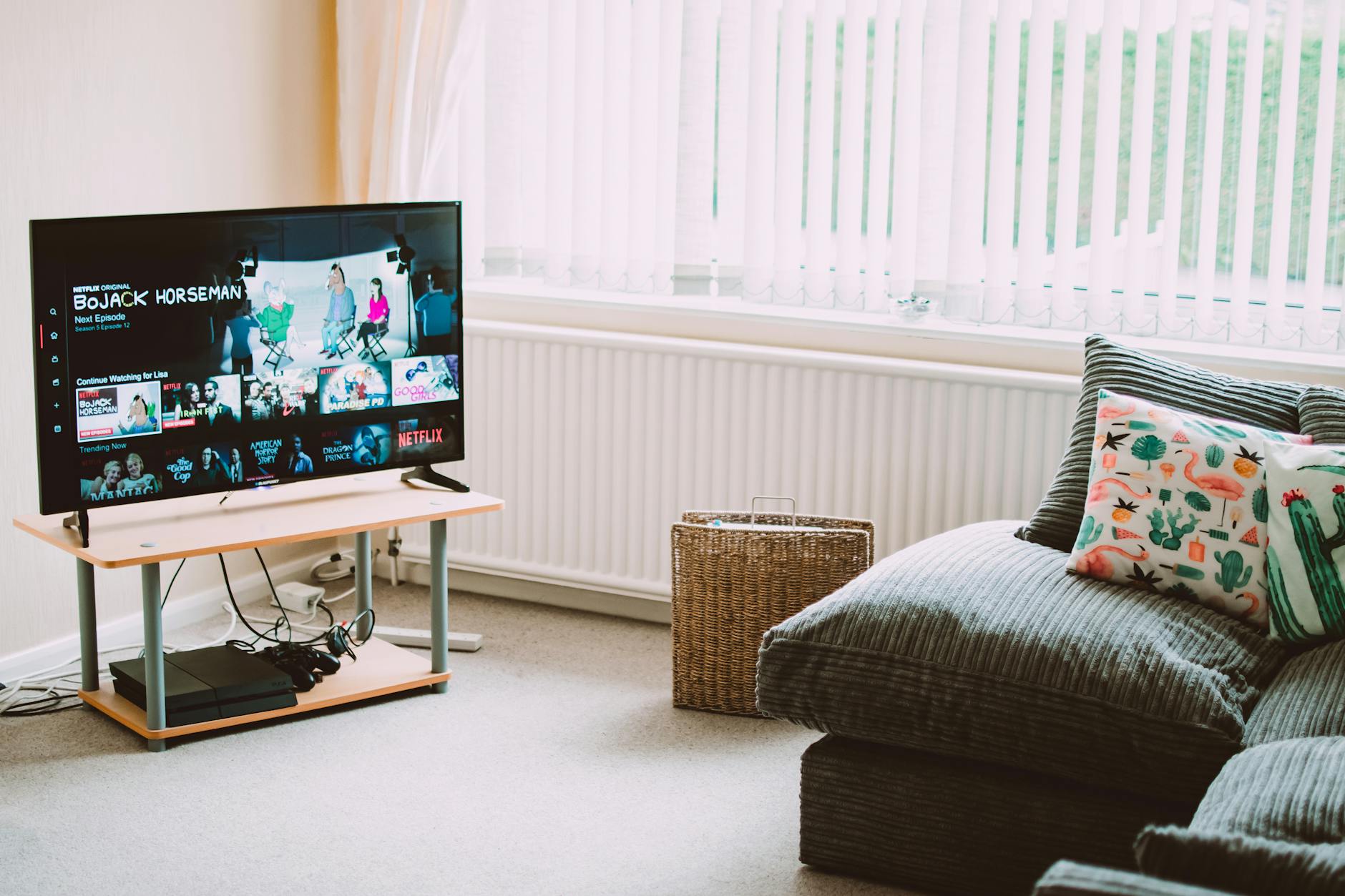
5 Best IPTV Boxes of 2026: Top Devices Reviewed
Looking for the best IPTV boxes 2026 has available? We tested 15+ devices and picked the top 5 for streaming performance, price, and compatibility.
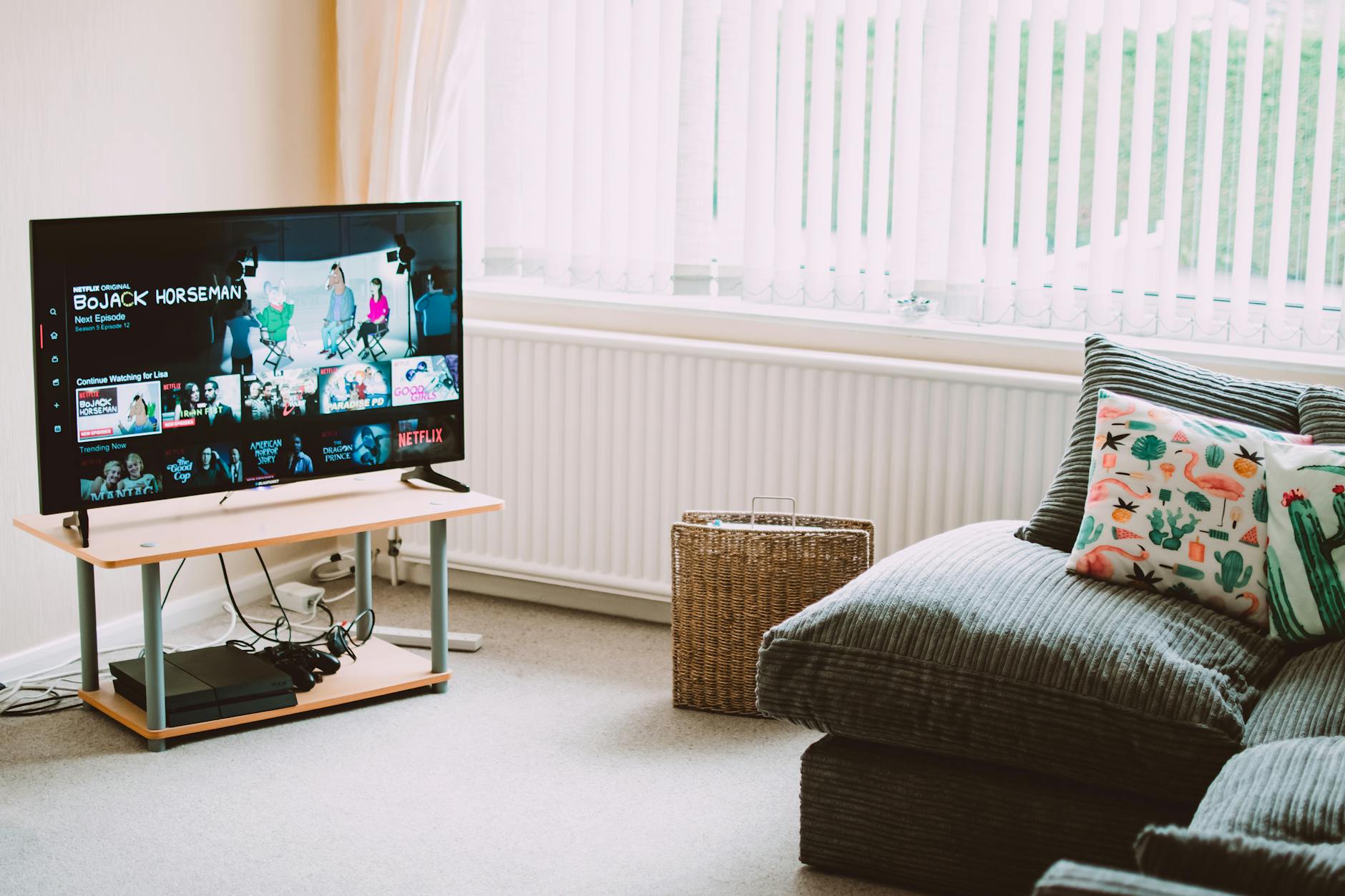
Top 4 IPTV Boxes in 2026: Updated Value Picks
Our updated top IPTV boxes 2026 picks focus on value for money. These 4 devices deliver the best IPTV experience relative to their cost in 2026.
10 Best Free IPTV APK Apps for Android (2026)
The best free IPTV APK apps for Android in 2026 — ranked by features, ad load, and stream quality. Know what you're getting before you install.